¶ General Information
With QuickEScan (QES for short), instructors can use traditional paper-based tasks in electronic exams with Dynexite. During the exam, students independently scan their handwritten calculations, formulas, or drawings. Each exam workstation is equipped with a QuickEScan for this purpose.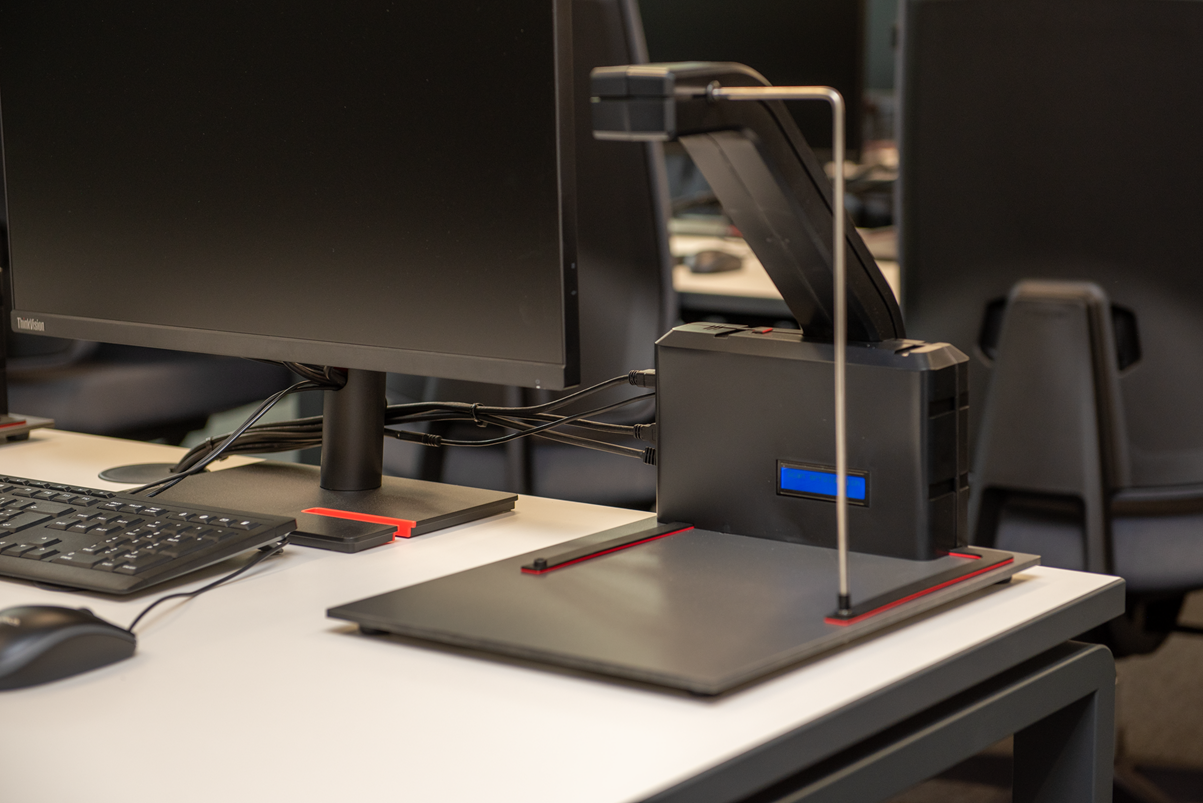
¶ Technical Information
QuickEScan is a standalone hardware solution that can be used both as a client for Dynexite and as a peripheral device (companion) for easy document scanning.
¶ Setup
This guide applies to Dynexite installations that use the “dynexte-deploy” script. However, the described settings can also be transferred to other Docker-based installations.
QuickEScan is included as an integrated module in Dynexite. Activation is performed exclusively via environment variables and can therefore only be carried out by a system administrator.
¶ Configuration
QuickEScan can be configured in both the Orbit-Learner and the Satellite. Two settings are available for this purpose:
- QUICKESCAN_ENABLED
- QUICKESCAN_ASSET_URL
To activate QuickEScan, QUICKESCAN_ENABLED must be set to 1.
To ensure the QES can be detected, QUICKESCAN_ASSET_URL must point to the scanner’s address. Currently, the port of the integrated web server must also be specified (port 8080).
Configuration in the deployment script:
/// .env.orbit oder .env.satellite

# QuickEScan Configuration
QUICKESCAN_ENABLED=1

# Asset-URL for primary operation
QUICKESCAN_ASSET_URL=http://localhost:8080

# Asset-URL, e.g. for companion operation at RWTH Aachen University
QUICKESCAN_ASSET_URL=http://172.20.20.22:8080

# Asset URL with DNS entry to support both primary and secondary modes.
QUICKESCAN_ASSET_URL=http://quick-e-scanner.local:8080
Currently, only a single QuickEScan configuration can be stored per Dynexite instance. Therefore, all clients must use the same configuration.
¶ Testing
To test QuickEScan, it must first be configured. Afterwards, a test exam that includes an upload task should be conducted. The QES will then appear as a selectable source.
¶ Special requirements for exams using QuickEScan
When preparing exams in which tasks require QuickEScan, several special aspects must be considered. These include the appropriate task type as well as the corresponding configuration options in exam development.
Students must be provided with exam paper on which they can record their answers (such as calculations, detailed formula representations, or drawings) by hand. A scan of the exam paper is then uploaded to the corresponding task.
¶ Task type
For tasks that use QuickEScan, the file upload task type is used.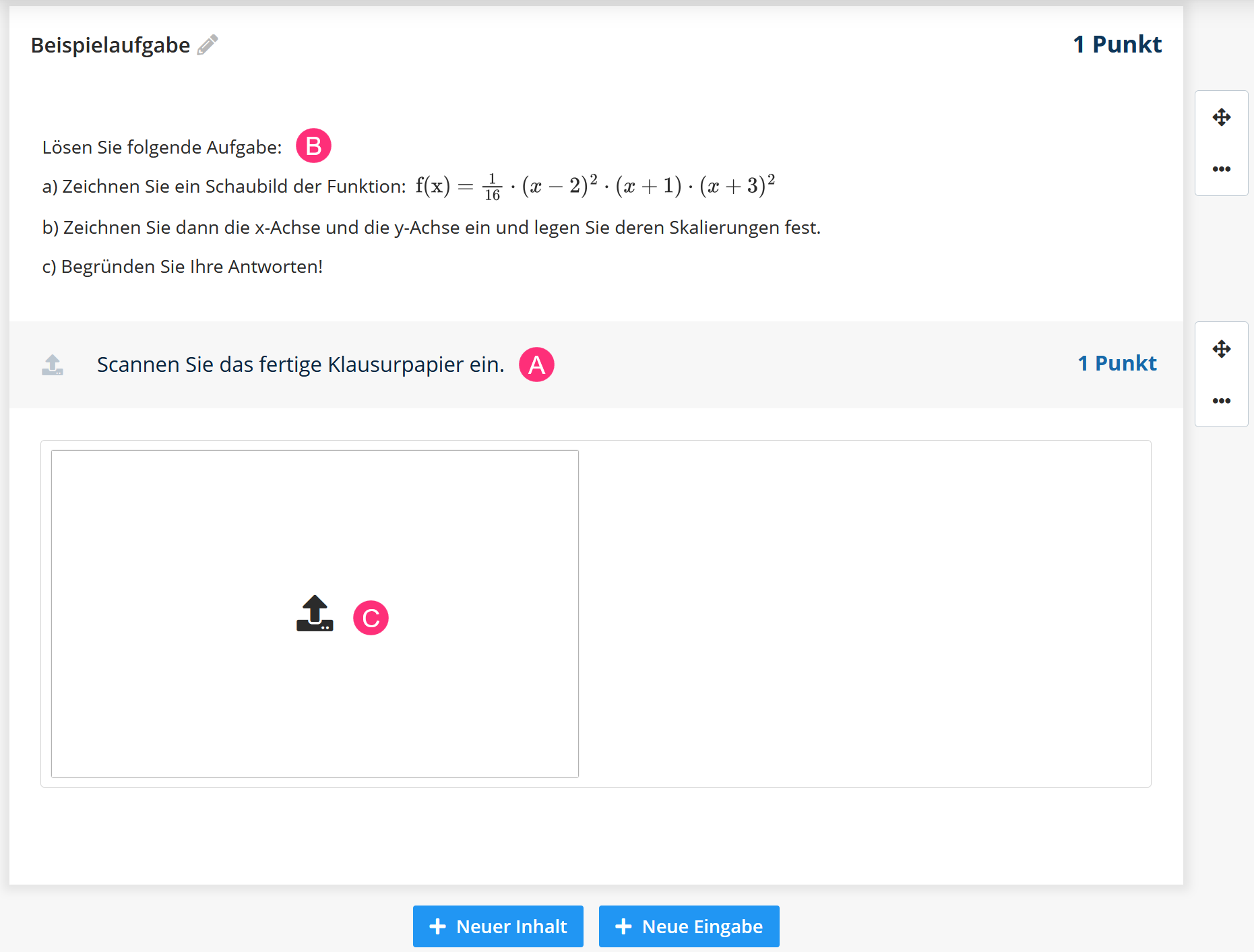
This task type consists of:
- Text block for the task description (A): This contains the actual exam question.
- Optional content block (B): This can be used to include supplementary or specially formatted instructions (e.g. formula representations) or additional image files.
- Upload area ©: An icon opens a menu that guides users step by step through the scanning process. After the scan is completed, the scanned exam papers are displayed in the upload area.
¶ Configuration options in exam development
In the exam development process of a QuickEScan exam, a separate upload phase can be configured in the Development step. This provides students with an additional time window after the answer phase, during which they can only scan and upload their exam papers.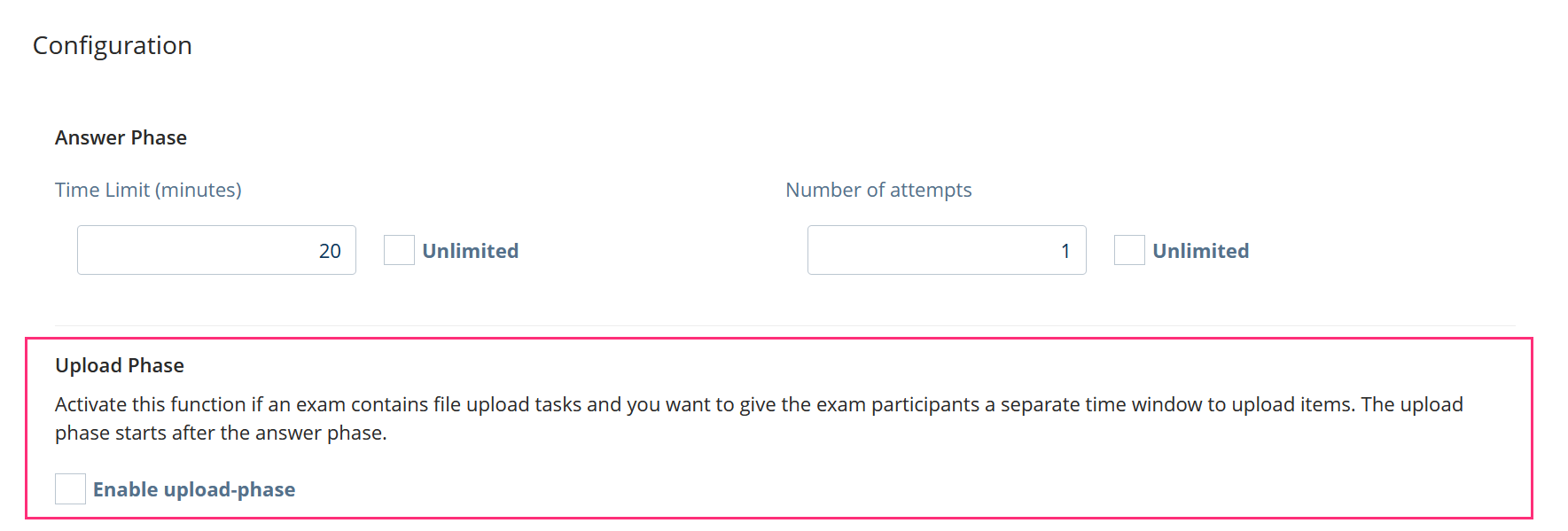
In addition to the duration of the upload phase, it can be configured whether students’ submitted answers are displayed or hidden during this phase.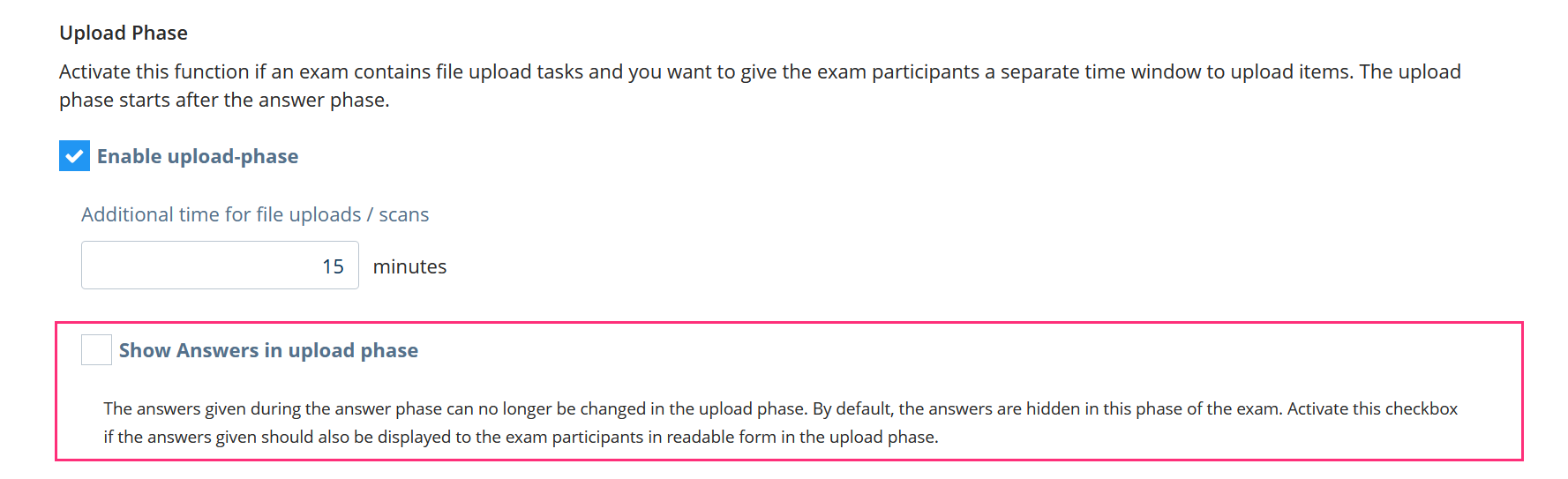
Regardless of this setting, answers can no longer be modified during the upload phase.
During the exam, students are informed in upload tasks about the separate time window for uploading.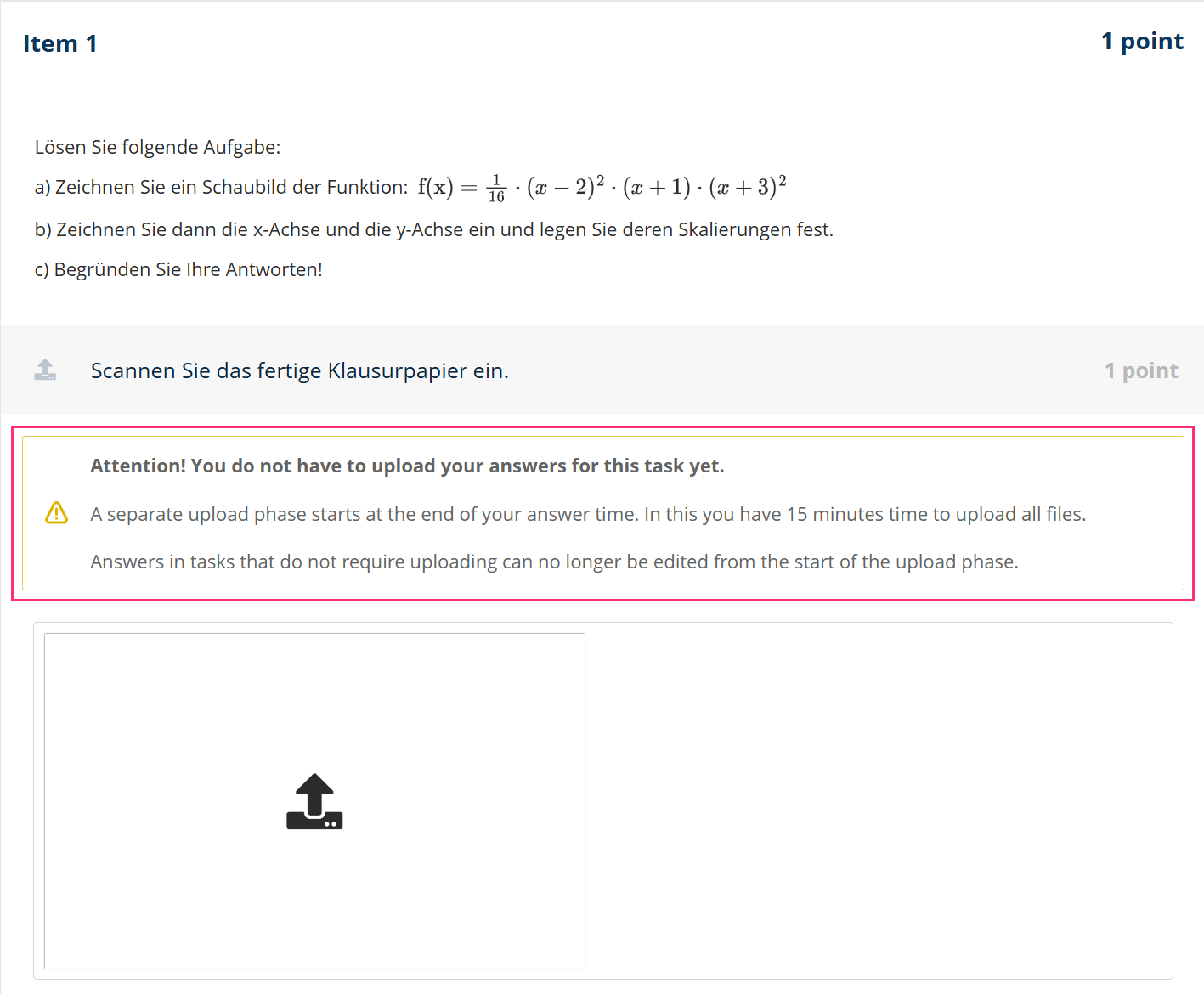
A corresponding notice is also shown when manually submitting an exam during the answer phase.
¶ Exam paper
Exam paper is provided to students during the exam. On this paper, answers to an exam question can be written by hand within a framed area, for example as calculations, formula representations, or drawings. After the exam paper has been scanned, it is displayed in the upload area of the corresponding task.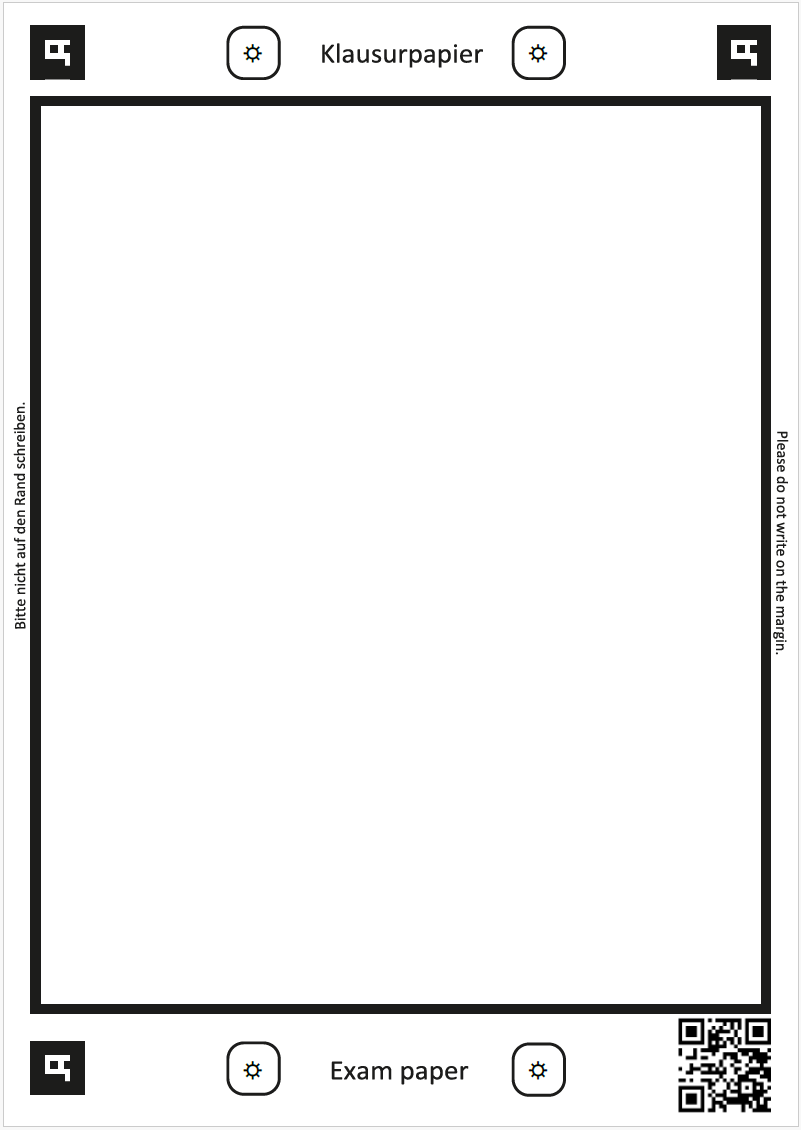
Example of a blank exam paper (RWTH-specific design, as of September 2025)
The scanned exam paper is stored in two versions:
¶ Raw version
- Is only displayed if the exam paper is not positioned correctly or the QR code cannot be recognized.
- An error message informs students about the issue.
- For correct detection, the position markers in the two upper corners and the lower left corner, as well as the QR code in the lower right corner, must be correctly aligned. The QR code must not be covered or marked.
¶ Processed version
- Is displayed when the scan has been completed correctly.
- Only the content within the black frame is shown.
- The display depends on the configuration and is shown either in black and white or in color, depending on the system.
¶ Using QuickEScan in an exam
Participants complete their answers to tasks using QuickEScan on exam paper. This can then be uploaded to the corresponding tasks during a separate upload phase. Alternatively, scanning is also possible during the answer phase.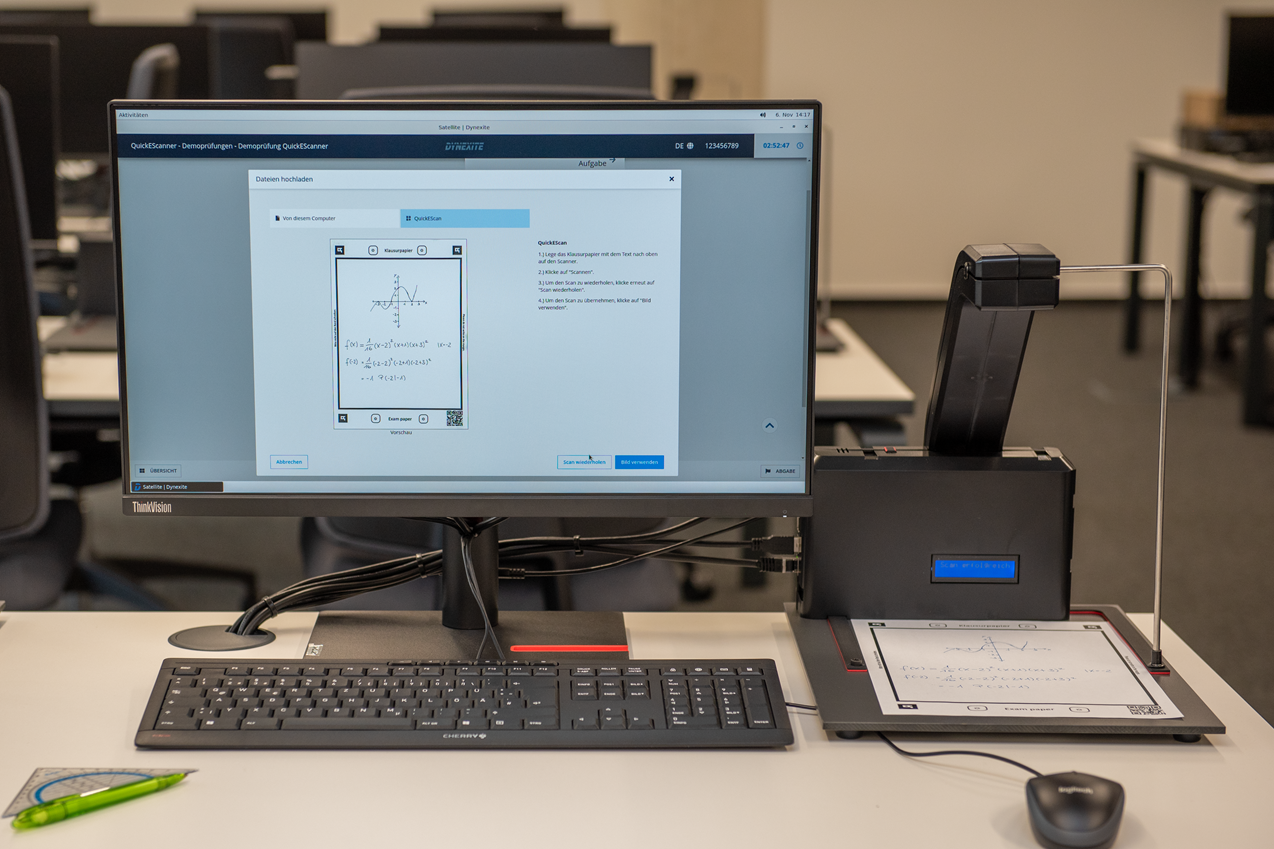
Clicking the upload icon starts the scanning process: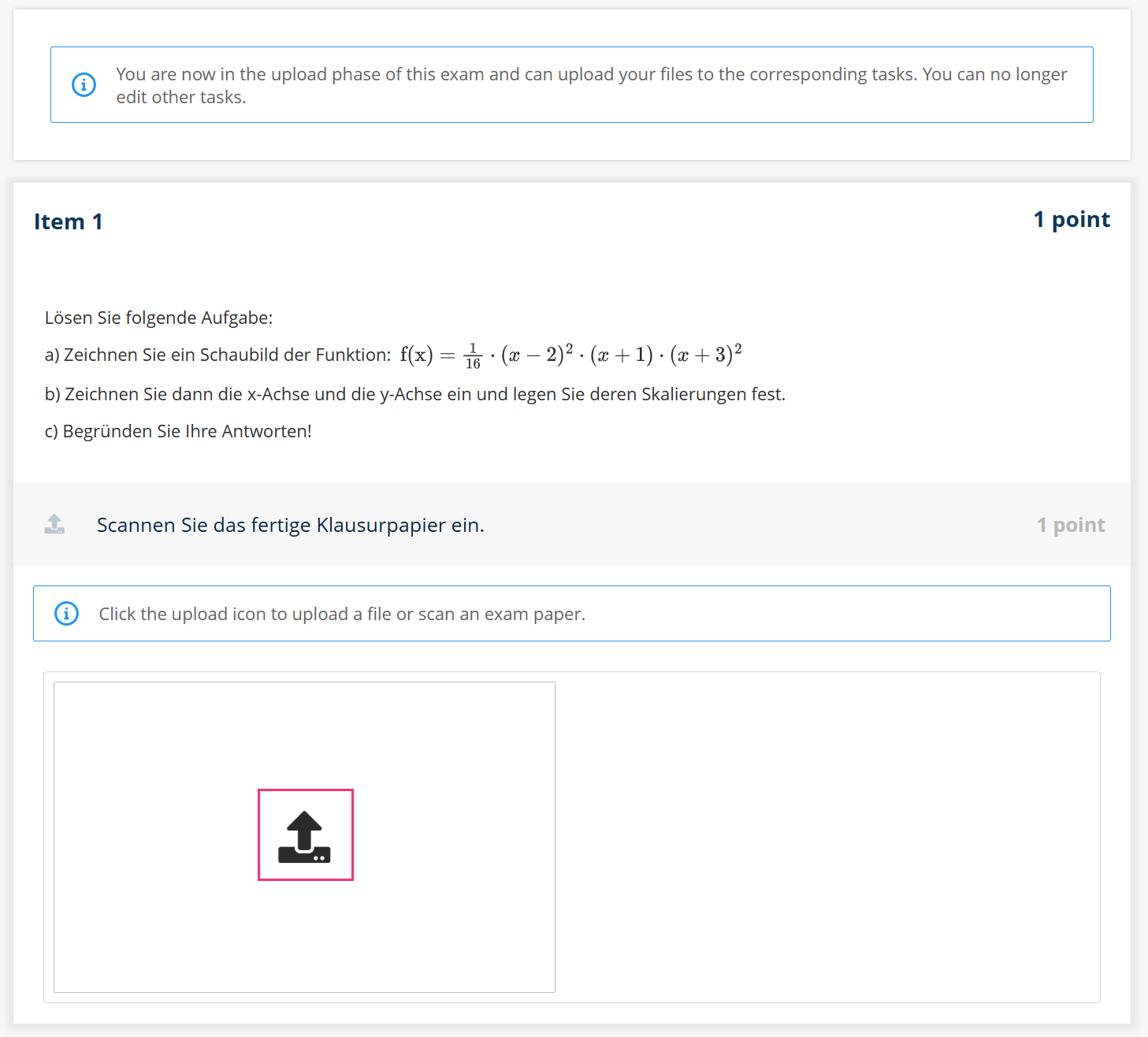
The Upload files window opens, providing a short step-by-step guide through the scanning process: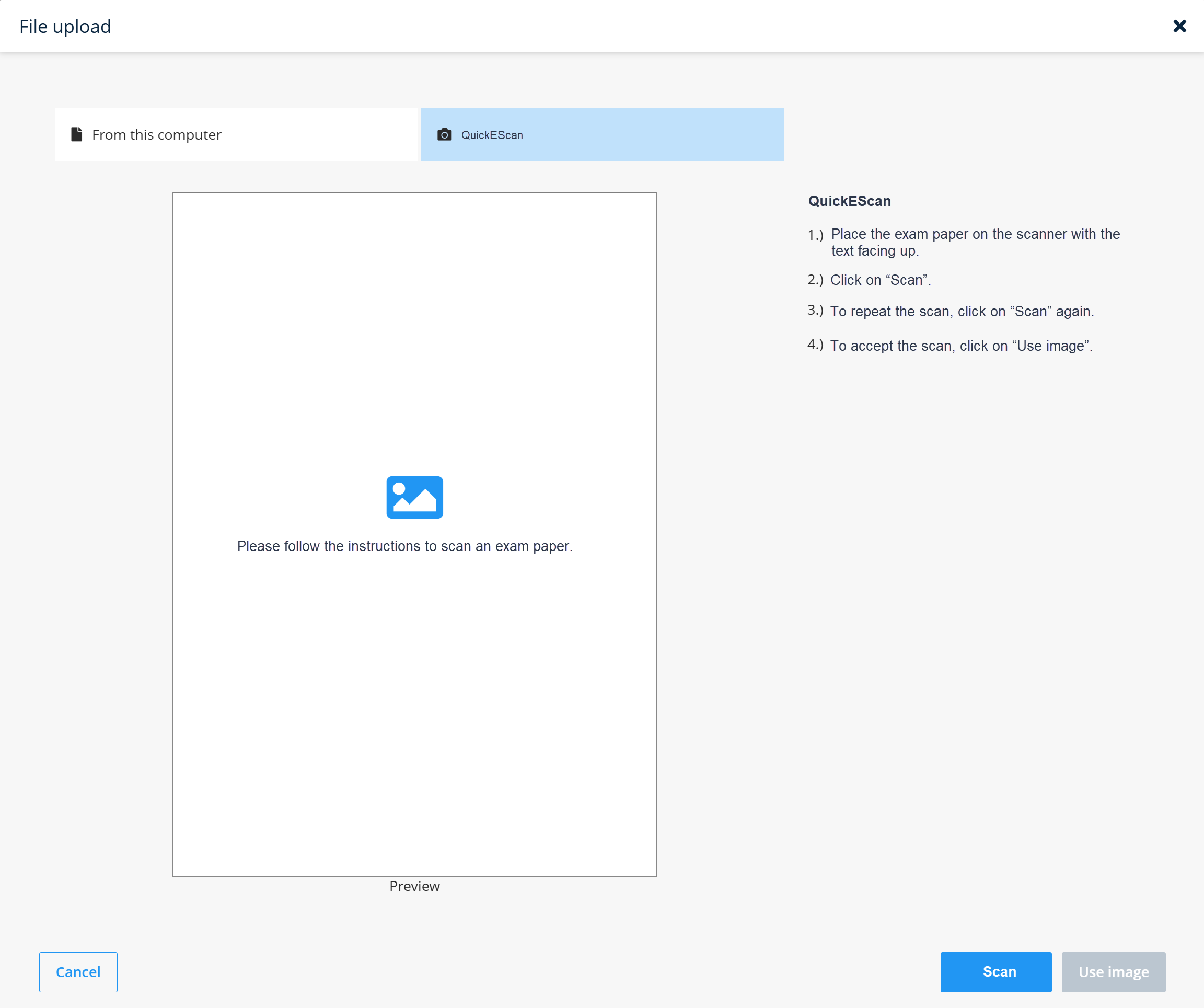
After placing the exam paper on the QES and clicking Scan, a preview of the document is displayed:
- Repeat scan restarts the scanning process.
- Use image accepts the scan and closes the window.
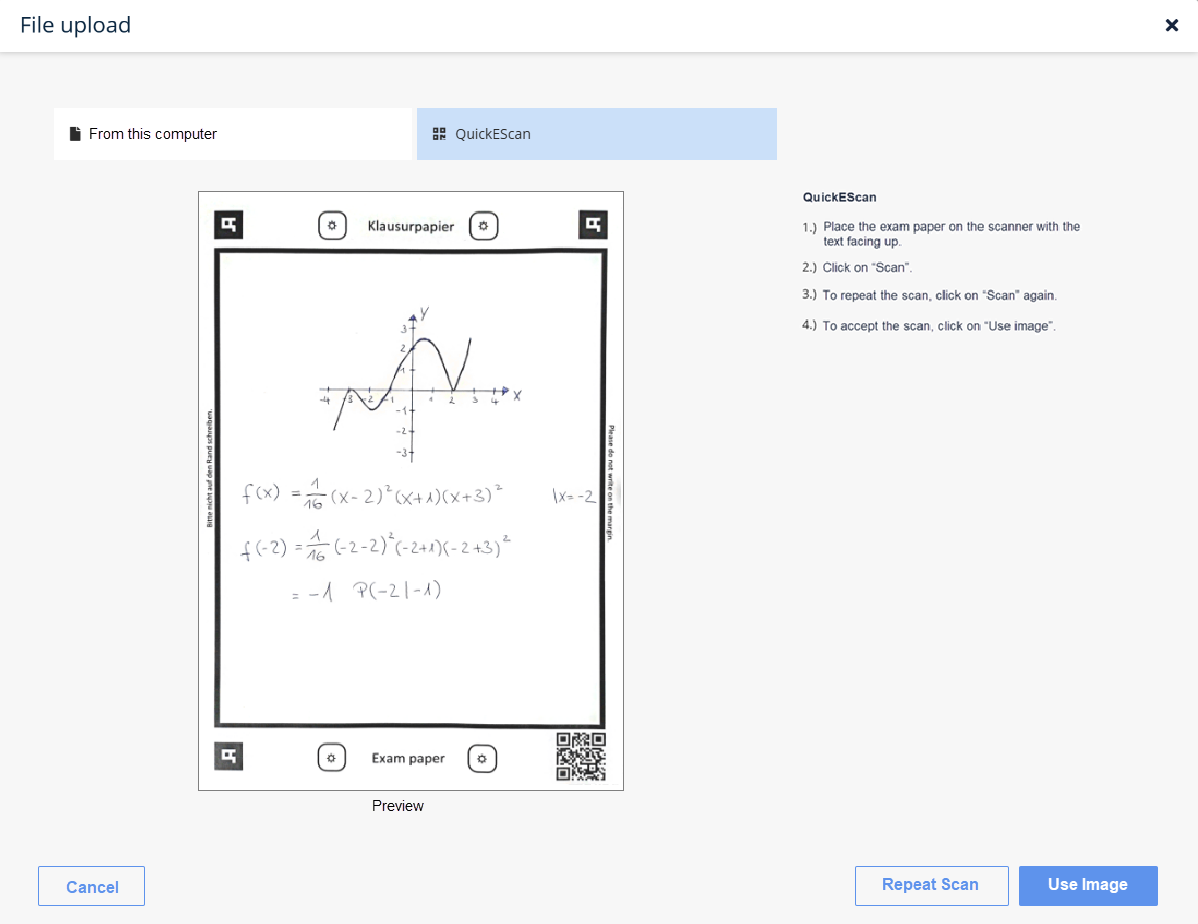
The uploaded exam paper is then displayed directly within the task: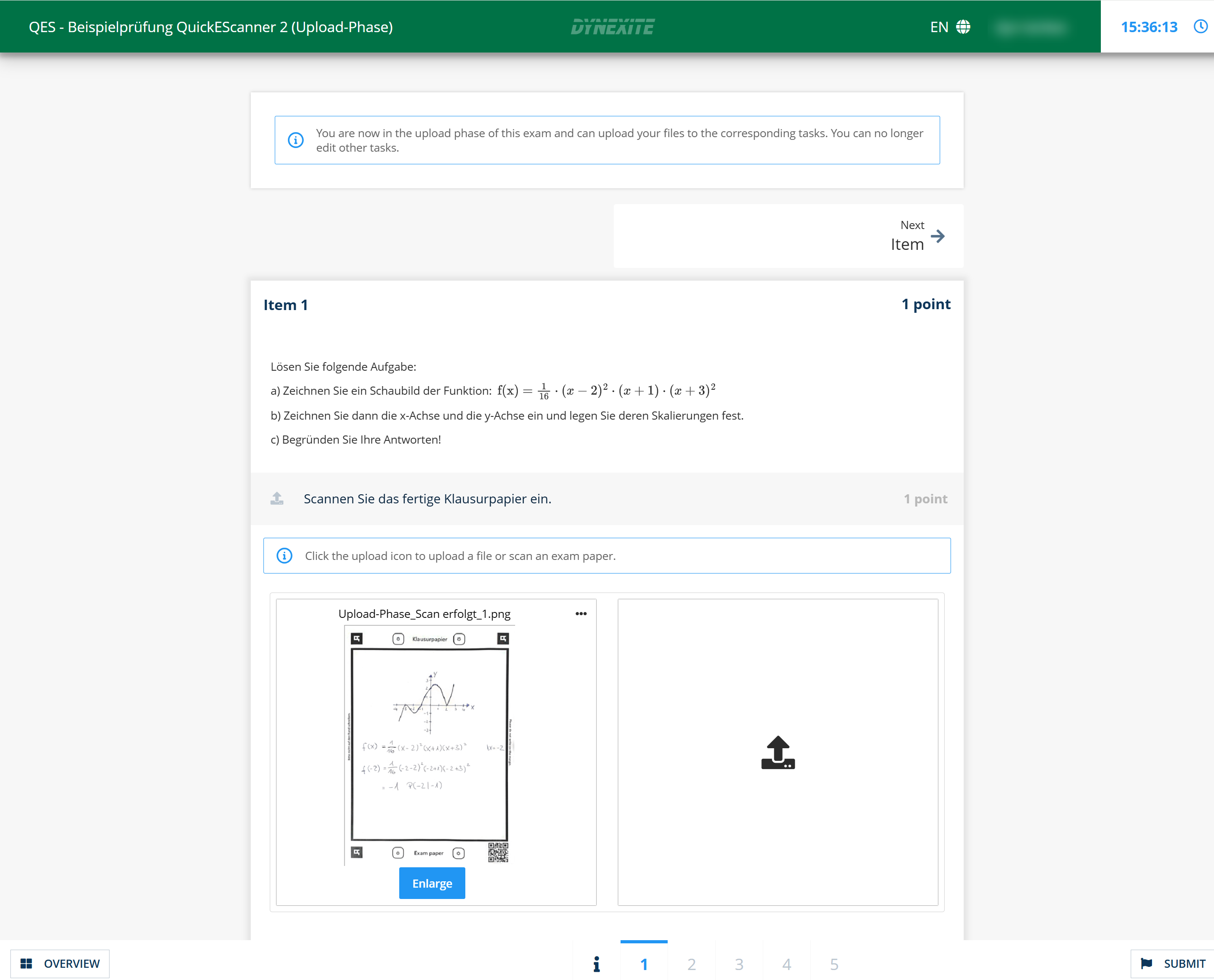
Any number of exam papers can be uploaded to a task. Using the three-dot menu that appears when hovering over an image, the following options are available:
- Delete
- Move to front
- Move to back
¶ Further information about the scanning process
Duration: The scanning process takes approximately 3–4 seconds per exam paper.
Status messages: The QuickEScan display window shows appropriate status messages during the scanning process.
Language: The language of the display window depends on the Dynexite user interface language selected (German or English).
¶ RWTH-specific information
- The exam paper is provided by the e-examination team.
- The scanned exam paper is displayed in black and white.